

Enabling Two-Factor Authentication (2FA)
Protect your Putler account and financial store data by enabling Two-Factor Authentication with an authenticator app.
Steps to activate 2FA for your Putler account
- Log-in to your Putler account and go to Profile > Settings >Security.
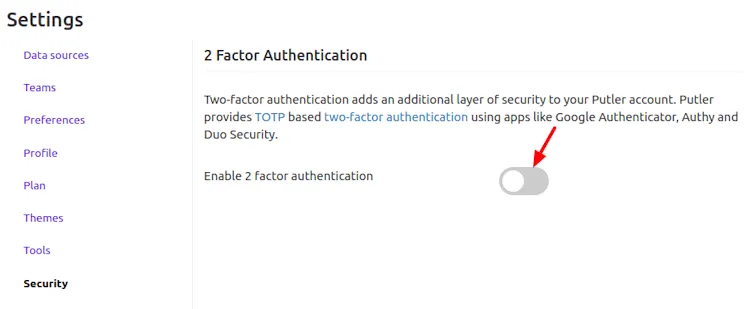
- Click on the slider to enable 2-factor authentication as shown in the above image.
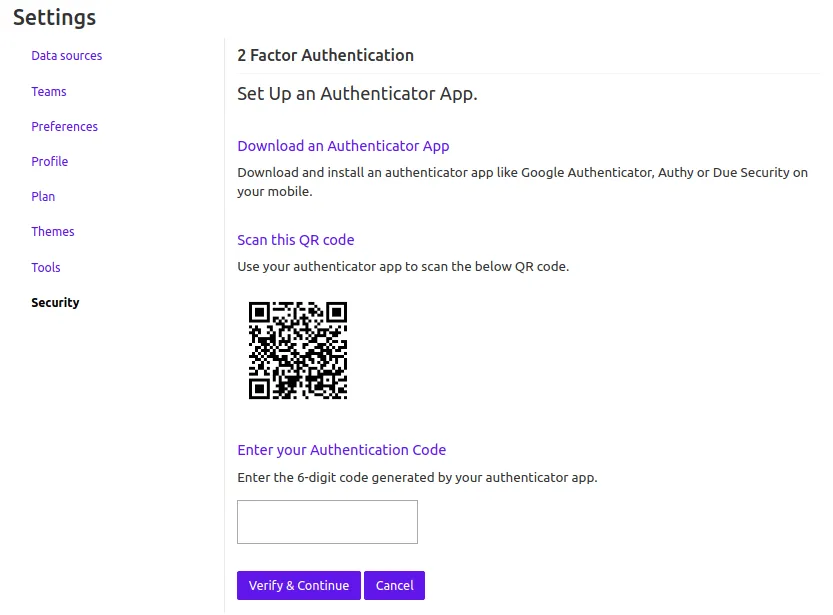
- Download any Authenticator App - Google Authenticator, Authy or Due Security on your mobile.
- Once you download and install the app on your phone, use the phone to scan the QR code.
- The app will generate a 6-digit code which you need to enter in the box.
- Click on ‘Verify & Continue’.
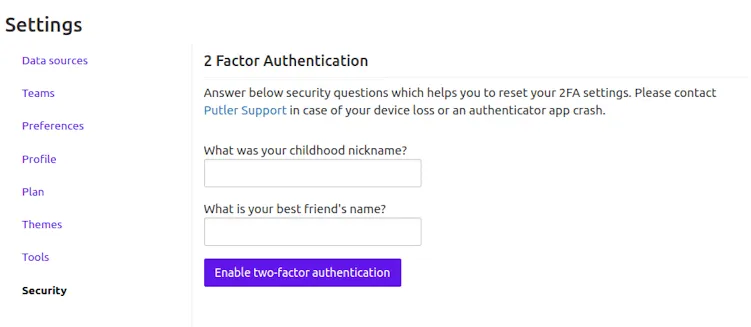
- Next, enter two different responses in the boxes respectively as shown in the above image. This is to reset your 2FA settings in case you lose your phone or if the authenticator app crashes.
- Click on ‘Enable two-factor authentication’.
You have now successfully activated two-factor authentication for your Putler account.
Now log-in to Putler using 2FA
- Log-out of Putler and log-in again.
- Enter your username and password.
- Next, enter the 6-digit code generated by the authenticator app and click on Verify.
- You will then be logged in to your Putler account.