

Visuals, tables & snippets
Blocks that show something: pictures, video, diagrams, tables, and reusable snippets.
Picture
Use when: Images, figures, and UI captures.

:::figure{caption="From Meh to Memorable"}

:::
:::figure{framed caption="Framed figure on white background"}

:::
:::figure{w-380 caption="Constrained to 380px wide"}

:::
:::figure{wide caption="Wider than the text column"}

:::
:::figure{full caption="Full bleed across the screen"}

:::
:::figure{pull w-260 caption="Hanging into the margin"}

:::
:::figure{side caption="Sitting in the sidebar"}

::::::figure{ratio-16-9 framed caption="Responsive 16:9 embedded frame"}
<iframe src="https://example.com" title="Demo frame"></iframe>
:::Screenshots that look professional
- Crop tight: remove empty margins, desktop borders, and dead screen space.
- Use realistic data: use real customer names and product numbers, not “asdf” or “test”.
- Hide clutter: turn off browser bookmarks, extension icons, and OS notifications.
- Don’t leave empty space: collapse unused sidebars and resize windows to fit the content.
- Save retina captures as name@2x.webp: rendered at half size so text stays sharp.
- Frame white UI: add
{framed}or use:::browserso light UI does not bleed into the page.

Do and don't
Do: always write descriptive alt text and a helpful caption. Don’t: upload uncompressed PNGs straight from your screenshot tool.
Browser window
Use when: Show web pages in a realistic browser frame.
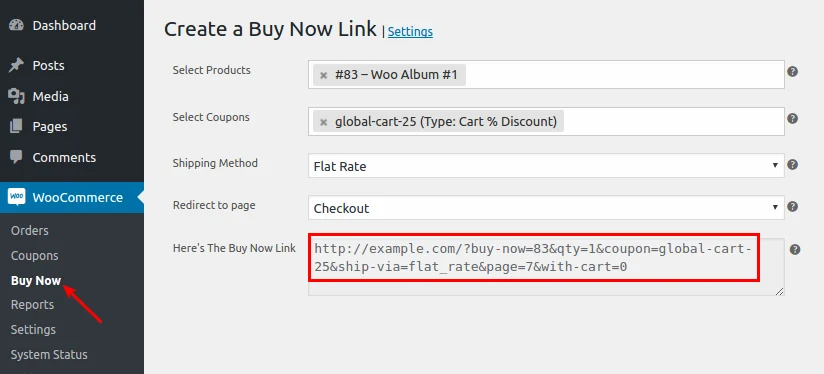
:::browser{caption="https://example.com/checkout"}

:::Do and don't
Do: include the URL in the caption attribute. Don’t: use a browser frame for mobile app screenshots.
Video
Use when: Responsive video players and looping clips.
:::video{caption="WooCommerce checkout walk-through"}
https://www.youtube.com/watch?v=dQw4w9WgXcQ
::::::video{poster="/test-assets/demo-poster.jpg" caption="Self-hosted product demo"}
/test-assets/demo.mp4
::::::video{framed caption="Framed video player"}
https://www.youtube.com/watch?v=dQw4w9WgXcQ
::::::video{wide caption="Wide video player"}
https://www.youtube.com/watch?v=dQw4w9WgXcQ
::::::video{autoplay loop muted framed caption="Silent looping clip (use instead of a heavy GIF)"}
/test-assets/demo.mp4
:::Paste a YouTube URL or a path to a self-hosted MP4. YouTube videos automatically fetch and display their video cover image. For self-hosted videos, specify poster="/path/to/poster.jpg".
Do and don't
Do: use silent looping MP4s instead of animated GIFs. Don’t: enable sound autoplay on page load.
Cartoon
Use when: A comic panel placed beside text in the sidebar.
:::cartoon{caption="The quickest way to double your sales is to halve your prices."}

:::A square comic panel with its punchline underneath. It always goes in the sidebar, beside the text you put it next to. On phones there is no sidebar, so it sits in the text where you placed it.
Use it for a light break beside a dense section. Never make it carry information the reader needs; plenty of readers will skip it. One per post.
Do and don't
Do: keep the punchline short and self-contained. Don’t: put essential diagrams or technical charts in a cartoon box.
Diagram
Use when: Flowcharts and sequence diagrams from text.
:::mermaid{caption="Checkout recovery workflow"}
flowchart LR
  A[Cart Abandoned] --> B{Email Sent?}
  B -- Yes --> C[Customer Returns]
  B -- No --> D[Send 1hr Reminder]
  D --> C
::::::mermaid{h-250 caption="Content pipeline"}
flowchart LR
A[Topic] -->|Research, Deepen & Revise| B[Draft]
B --> |Assets| C[Publish Ready]
C --> D[Publish]
:::Draw a diagram by writing text. Each line is one arrow: A[Customer] --> B[Checkout]. It’s turned into a crisp picture when the site builds.
Easiest way: open mermaid.live, start from one of the examples below, change the words, and watch the picture update. Paste the text back between :::mermaid and :::.
Keep it small: more than about ten boxes is two diagrams.
Do and don't
Do: keep diagrams under ten boxes so text remains readable. Don’t: put large software architecture schemas in a single diagram.
Table
Use when: Structured data, prices, and feature comparisons.
| Feature | Starter | Business | Enterprise |
|---|---|---|---|
| Monthly recovery emails | 500 | 5000 | Unlimited |
| Custom sender domain | |||
| Priority live support |
:::table
Feature, Starter, Business, Enterprise
Monthly recovery emails, 500, 5000, Unlimited
Custom sender domain, {no}, {yes}, {yes}
Priority live support, {no}, {partial}, {yes}
:::| Plan | Monthly Price | Annual Discount | Max Stores | Support Response |
|---|---|---|---|---|
| Starter | $19 | 15% | 1 | 24 hours |
| Growth | $49 | 20% | 3 | 4 hours |
| Enterprise | $199 | 30% | Unlimited | 1 hour |
:::table{wide}
Plan, Monthly Price, Annual Discount, Max Stores, Support Response
Starter, $19, 15%, 1, 24 hours
Growth, $49, 20%, 3, 4 hours
Enterprise, $199, 30%, Unlimited, 1 hour
:::| Feature | Free | Pro |
|---|---|---|
| Unlimited campaigns | ||
| Exit intent triggers | ||
| A/B headline testing | ||
| Custom fonts |
:::table{stripe-rows}
Feature, Free, Pro
Unlimited campaigns, {yes}, {yes}
Exit intent triggers, {no}, {yes}
A/B headline testing, {no}, {yes}
Custom fonts, {no}, {yes}
:::| Metric | Q1 | Q2 | Q3 | Q4 |
|---|---|---|---|---|
| Recovered Carts | 120 | 240 | 310 | 480 |
| Revenue Saved | $4200 | $8900 | $11400 | $18200 |
:::table{stripe-cols}
Metric, Q1, Q2, Q3, Q4
Recovered Carts, 120, 240, 310, 480
Revenue Saved, $4200, $8900, $11400, $18200
:::| Setting | Recommended Value | Notes |
|---|---|---|
| PHP Memory Limit | 256MB | Essential for checkout |
| Max Execution Time | 300s | Avoids timeout on imports |
:::table{panel}
Setting, Recommended Value, Notes
PHP Memory Limit, 256MB, Essential for checkout
Max Execution Time, 300s, Avoids timeout on imports
:::| Code | Status | Meaning |
|---|---|---|
| 200 | Success | |
| 404 | Not Found | |
| 500 | Server Error |
:::table{fit}
Code, Status, Meaning
200, {yes}, Success
404, {no}, Not Found
500, {no}, Server Error
:::| Capability | Icegram | Competitor A | Notes |
|---|---|---|---|
| Native WordPress Integration | Competitor has limited features | ||
| Zero External Database Sync | Competitor is not as user friendly as ours | ||
| Flat Annual Pricing | Competitor is known for black-hat pricing tactics | ||
| Some other feature | but unreliable |
:::table{panel stripe-rows wide}
Capability, Icegram, Competitor A, Notes
Native WordPress Integration, {yes}, {partial}, Competitor has limited features
Zero External Database Sync, {yes}, {no}, Competitor is not as user friendly as ours
Flat Annual Pricing, {yes}, {na}, Competitor is known for black-hat pricing tactics
Some other feature, {yes}, {yes} but unreliable,
:::
Write the rows as CSV between :::table and :::: the first row is the header, commas separate cells, and a cell that contains a comma goes in quotes. The older ```csv fence still works.
Do and don't
Do: use CSV format for easy editing and clean diffs. Don’t: cram more than 5 columns into standard text width.
Snippet
Use when: Reusable centralized blocks like newsletter boxes or bios.
:::snippet{name="newsletter"}
:::
A block written once and reused on many pages, like a newsletter sign-up or an author box. Put its name in, and the whole block appears. When the snippet is updated, every page using it updates too.
Need a new one? Ask the admin. Snippets are created centrally so they stay consistent.
Do and don't
Do: use for blocks that need identical copy across multiple pages. Don’t: create a snippet for one-off content used only once.